



Posts tagged Microsoft
Windows 7 is here.
Oct 22nd
I have been toying with it for a couple of months and have to say it is an improvement over Vista, but I also have to agree with most of the media in saying that I don’t think I would recommend that the average user run out and buy the upgrade version of Windows 7 to install on their existing home PC’s. I would wait and get it with a new PC. Most of the time an OS upgrade is more of a hassle than it is helpful. The only way I would recommend getting a Windows 7 upgrade now is if you were planning on reloading your computer completely in a fresh start kind of way.
Upgrades tend to take forever, and rarely do they improve the performance of the PC. So unless you plan on formatting the hard drive and starting over, I’d wait just a bit.
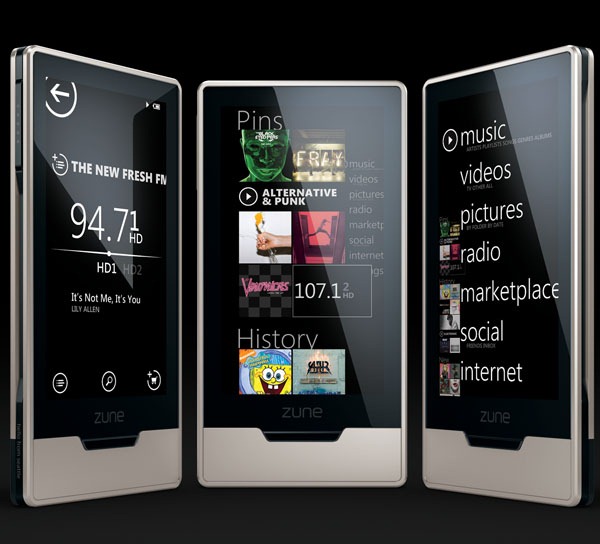
Looking forward to Zune HD… and more!
Aug 7th
This was a funny little video for a Friday:
I wish Microsoft would be a little less secretive about the upcoming Zune HD. I’d like to know if it’s going to have enough storage to effectively replace my Zune 80. I’d also like to know if I need to prepare to take out a second mortgage to be able to afford the device.
Office 2010: The Movie
Jul 10th
Clippy is gone, but not forgotten:
“Wingdings?!” At least they have a sense of humor.
New WV area code and Windows dial-up
Mar 3rd
Now that West Virginia is getting the new 681 area code, some Internet dial-up users are finding themselves in a pickle… Not only is the new 10-digit dialing a requirement for us, it’s also a requirement for our computers.
As a friend pointed out to me last night, most people around here have set up their computers to dial only the last seven digits of their ISP’s dial-up number. (623-xxxx) Well, effective February 28, all 10 digits must be dialed, including the area code. For a quickie guide to setting this up, look below. (Of course, if you can’t get on the Internet, how are you reading this?)
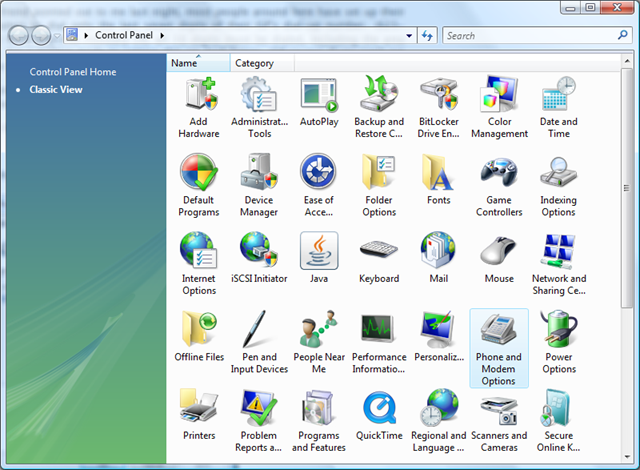
For Windows XP and Windows Vista, the fix is basically the same. These screenshots are from Vista, but the steps for XP are just the same:
Go to the Windows Control Panel and double-click “Phone and Modem Options”
The “Phone and Modem Options” window appears. (Imagine that!)
If you already have a location titled “My Location” you’re on your way! Not all dial-up software is the same, and some do not use the Windows modem options to configure their dialing. Hopefully, yours will. If you have a “My Location” line like mine above, click on “Edit…” If not, click “New…” (Though I can’t guarantee you that this will work for you. If you don’t have a location to start with, your software probably doesn’t use Windows to configure the modem. Sorry!)
If this is a new location, you’ll have to give it a Location name. “My Location” is just fine. Or, you can make up your own. Once you’ve reached the above screen, click on the “Area Code Rules” tab.
You may have an existing rule for 304. If you do, select it and click “Edit…” If you do not have an existing rule for 304, click “New…” Either way, you will reach this screen:
If the Area Code field is empty, type 304 in there. Here is the key step: Click the box beside “Include the area code.” That should be all there is to resolving this problem! Click OK three times to get out of there!
And, hopefully, you will be back online.